


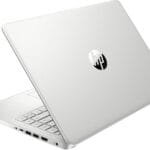

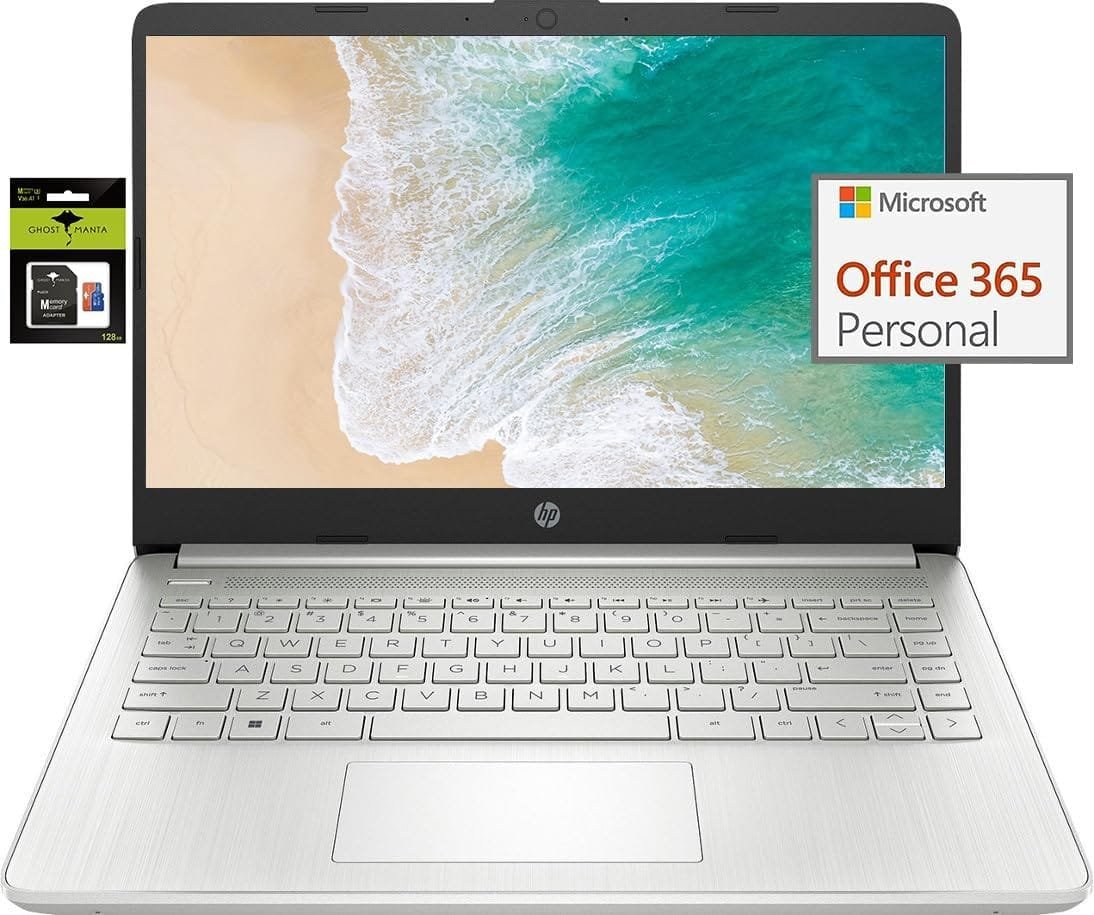
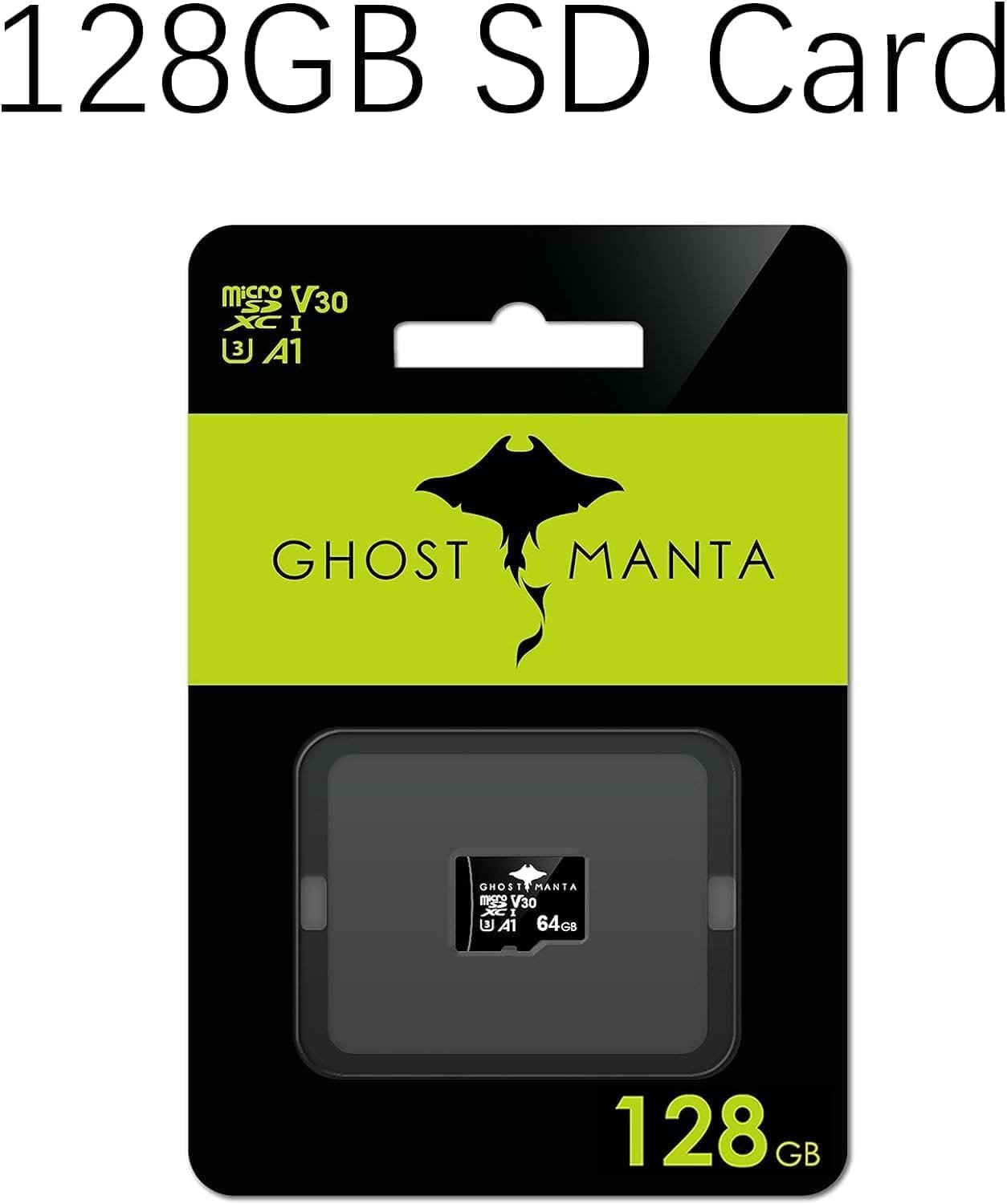
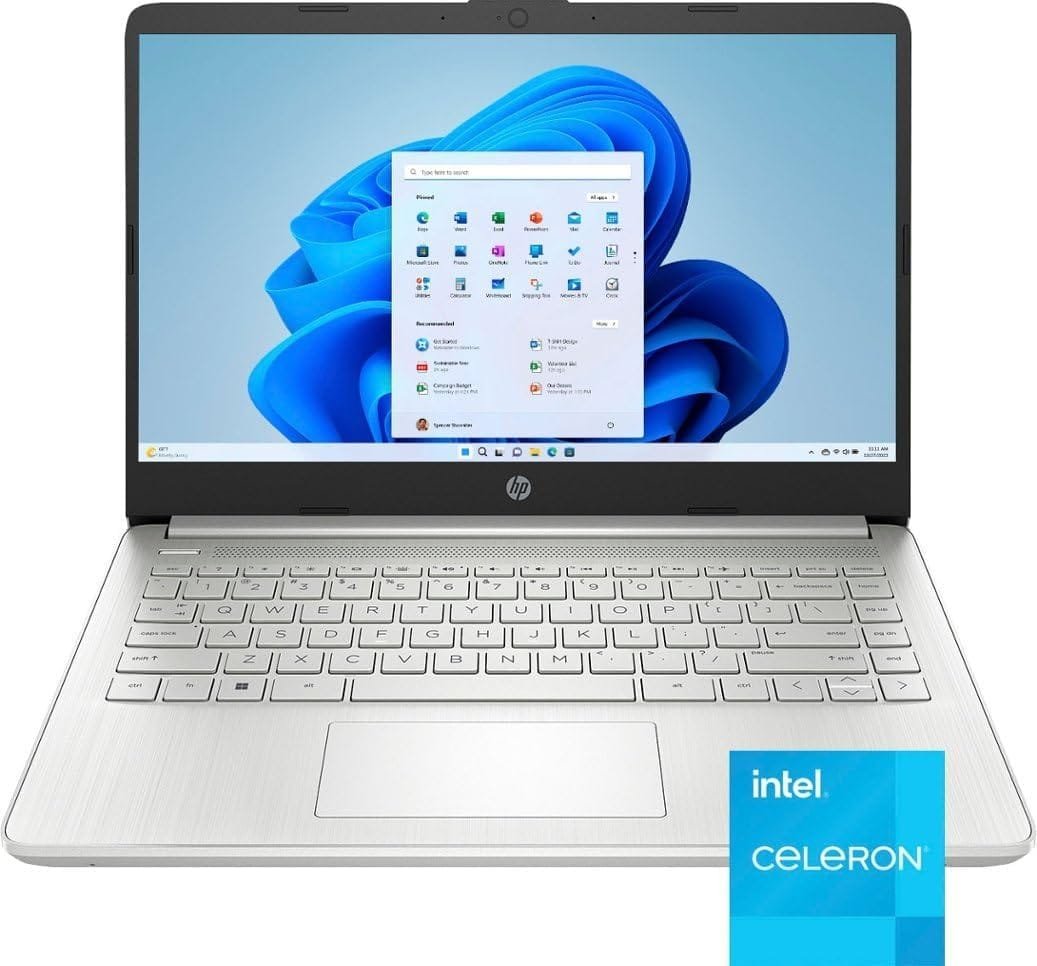
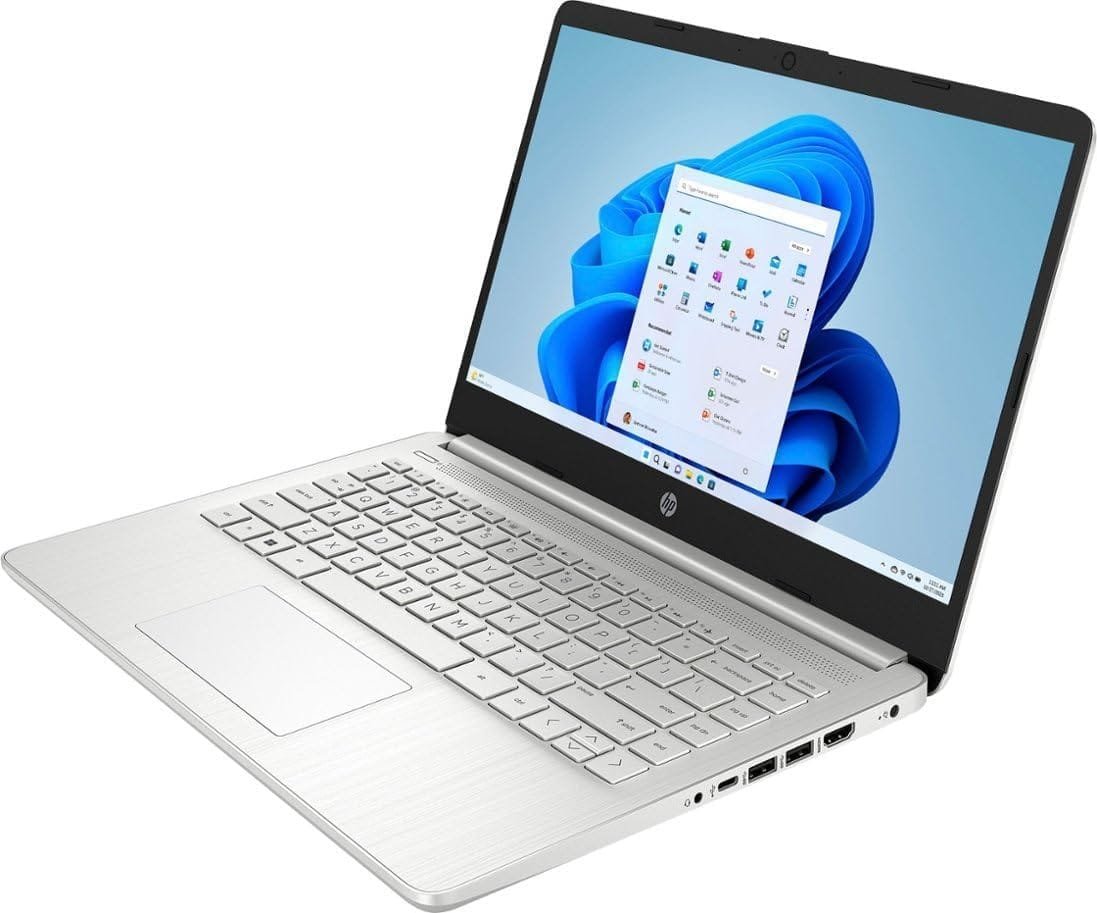

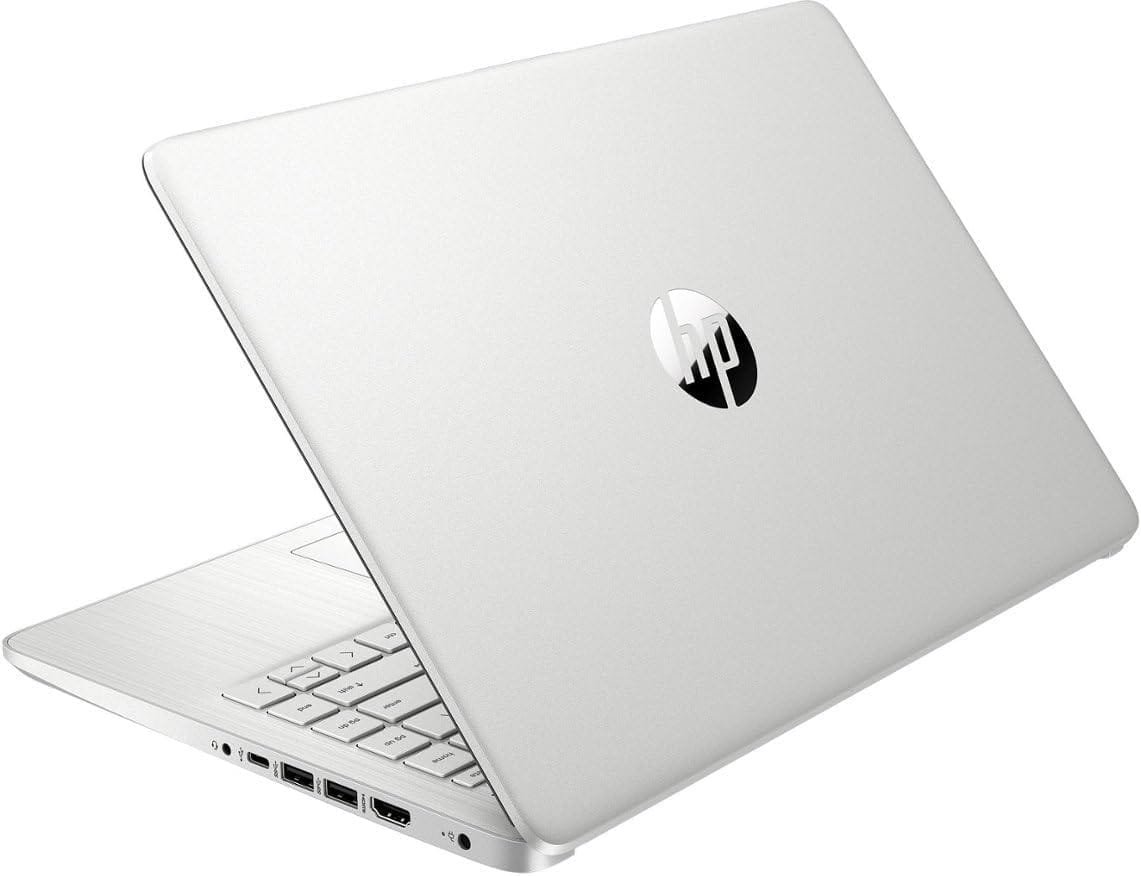
HP Laptop Computer 14″ Ultral Light for Students and Business, 4 Cores Intel Celeron, 8GB RAM, 256GB Storage(128GB eMMC+128GB Ghost Manta SD), 1 Year Office 365, Webcam, HDMI, WiFi, USB-C, Win 11 S

$299.99
Switching out of S mode in Windows 11
Windows 11 in S mode is designed for security and performance, exclusively running apps from the Store. If you want to install an app that isn’t available in the Store, you’ll need to switch out of S mode
1. On your PC running Windows 11 in S mode, open Settings > System > Activation.
2. In the Switch to Windows 11 Pro section, select Go to the Store. (If you also see an “Upgrade your edition of Windows” section, be careful not to click the “Go to the Store” link that appears there.)
3. On the Switch out of S mode (or similar) page that appears in the Store, select the Get button. After you see a confirmation message on the page, you’ll be able to install apps from outside of the Store.
Activate pre-installed Office 365:
1.Launch any Office app >
2.Start your activation by signing in with your account(Create a account if you don’t have one yet) >
3.Click “Activative Office” >
4.Sign in your account and follow the next prompts. >
5.Complete Step 1,2 and 3 >
6.Click on Refresh once Office is ready >
7.Open a document and accept the license agreement.
Display: 14.0-inch diagonal, HD (1366 x 768), micro-edge, BrightView
Processor: Intel Celeron N4120, 4 Cores & 4 Threads
Graphics: Intel UHD Graphics 600
Operating System: Windows 11 Home in S mode
Battery Life: Up to 10 hours
Webcam: True Vision 720p HD camera with integrated dual array digital microphones
Connectivity: 802.11a/b/g/n/ac (2×2)(19a) Wi-Fi and Bluetooth
Dimensions: 12.76 x 8.86 x 0.71 inches
Weight: 3.24 lbs
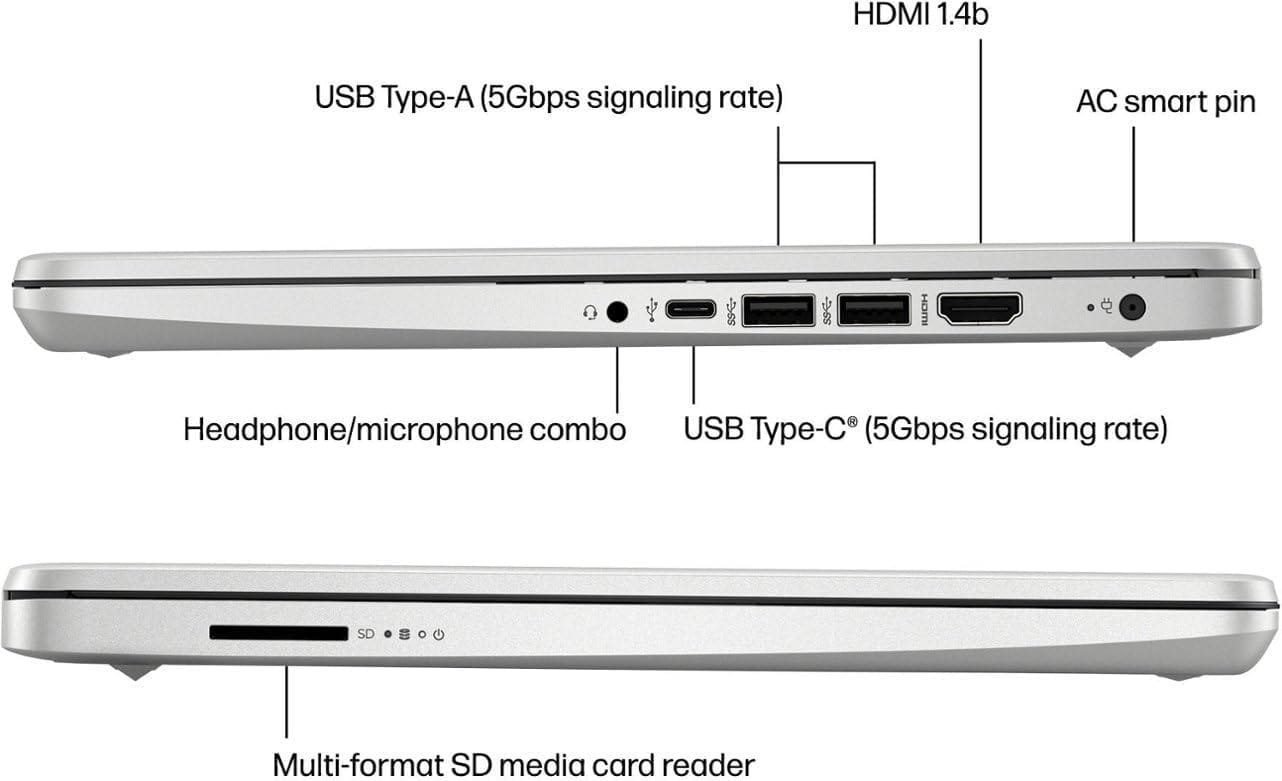
【14″ HD Display】14.0-inch diagonal, HD (1366 x 768), micro-edge, BrightView. With virtually no bezel encircling the display, an ultra-wide viewing experience provides for seamless multi-monitor set-ups.【Ports】1 x USB 3.1 Type-C ports, 2 x USB 3.1 Type-A ports, 1 x HDMI, 1 x Headphone/Microphone Combo Jack, and there’s a microSD slot.
【Processor & Graphics】Intel Celeron N4120, 4 Cores & 4 Threads, 1.10 GHz Base Frequency, Up to 2.60 GHz Burst Frequency, 4 MB Cahce, Intel UHD Graphics 600, Handle multitasking reliably with the perfect combination of performance, power consumption, and value
【RAM & Storage】Upgraded to 8GB RAM high-bandwidth DDR4 Memory (2400 MHz), Adequate high-bandwidth RAM to smoothly run multiple applications and browser tabs all at once. High-speed eMMC Storage for your office and webinar needs.
【Windows 11 Home in S mode】You may switch to regular windows 11: Press “Start button” bottom left of the screen; Select “Settings” icon above “power” icon;Select “Activation”, then Go to Store; Select Get option under “Switch out of S mode”; Hit Install. (If you also see an “Upgrade your edition of Windows” section, be careful not to click the “Go to the Store” link that appears there.)
Activate pre-installed Office 365: 1.Launch any Office app > 2.Start your activation by signing in with your account(Create a account if you don’t have one yet) > 3.Click “Activative Office” > 4.Sign in your account and follow the next prompts. > 5.Complete Step 1,2 and 3 > 6.Click on Refresh once Office is ready > 7.Open a document and accept the license agreement.
Price: $299.99
(as of Jan 10, 2025 09:54:12 UTC – Details)
Switching out of S mode in Windows 11
Windows 11 in S mode is designed for security and performance, exclusively running apps from the Store. If you want to install an app that isn’t available in the Store, you’ll need to switch out of S mode
1. On your PC running Windows 11 in S mode, open Settings > System > Activation.
2. In the Switch to Windows 11 Pro section, select Go to the Store. (If you also see an “Upgrade your edition of Windows” section, be careful not to click the “Go to the Store” link that appears there.)
3. On the Switch out of S mode (or similar) page that appears in the Store, select the Get button. After you see a confirmation message on the page, you’ll be able to install apps from outside of the Store.
Activate pre-installed Office 365:
1.Launch any Office app >
2.Start your activation by signing in with your account(Create a account if you don’t have one yet) >
3.Click “Activative Office” >
4.Sign in your account and follow the next prompts. >
5.Complete Step 1,2 and 3 >
6.Click on Refresh once Office is ready >
7.Open a document and accept the license agreement.
Display: 14.0-inch diagonal, HD (1366 x 768), micro-edge, BrightView
Processor: Intel Celeron N4120, 4 Cores & 4 Threads
Graphics: Intel UHD Graphics 600
Operating System: Windows 11 Home in S mode
Battery Life: Up to 10 hours
Webcam: True Vision 720p HD camera with integrated dual array digital microphones
Connectivity: 802.11a/b/g/n/ac (2×2)(19a) Wi-Fi and Bluetooth
Dimensions: 12.76 x 8.86 x 0.71 inches
Weight: 3.24 lbs
【14″ HD Display】14.0-inch diagonal, HD (1366 x 768), micro-edge, BrightView. With virtually no bezel encircling the display, an ultra-wide viewing experience provides for seamless multi-monitor set-ups.【Ports】1 x USB 3.1 Type-C ports, 2 x USB 3.1 Type-A ports, 1 x HDMI, 1 x Headphone/Microphone Combo Jack, and there’s a microSD slot.
【Processor & Graphics】Intel Celeron N4120, 4 Cores & 4 Threads, 1.10 GHz Base Frequency, Up to 2.60 GHz Burst Frequency, 4 MB Cahce, Intel UHD Graphics 600, Handle multitasking reliably with the perfect combination of performance, power consumption, and value
【RAM & Storage】Upgraded to 8GB RAM high-bandwidth DDR4 Memory (2400 MHz), Adequate high-bandwidth RAM to smoothly run multiple applications and browser tabs all at once. High-speed eMMC Storage for your office and webinar needs.
【Windows 11 Home in S mode】You may switch to regular windows 11: Press “Start button” bottom left of the screen; Select “Settings” icon above “power” icon;Select “Activation”, then Go to Store; Select Get option under “Switch out of S mode”; Hit Install. (If you also see an “Upgrade your edition of Windows” section, be careful not to click the “Go to the Store” link that appears there.)
Activate pre-installed Office 365: 1.Launch any Office app > 2.Start your activation by signing in with your account(Create a account if you don’t have one yet) > 3.Click “Activative Office” > 4.Sign in your account and follow the next prompts. > 5.Complete Step 1,2 and 3 > 6.Click on Refresh once Office is ready > 7.Open a document and accept the license agreement.
Customers say
Customers are satisfied with the laptop’s quality, speed, and functionality. They find it lightweight, easy to carry, and worth buying. The computer boots up quickly and runs smoothly.
AI-generated from the text of customer reviews
Related Products

Product Description

Productivity with No Limits
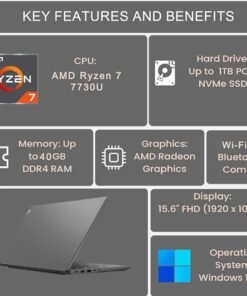
Designed for hybrid users in need of everyday computing power and functionality, this device has everything you seek for comfortable days at work. It boasts a AMD Ryzen 7 processor for efficient multitasking for site engineers, sales representatives and field technicians. To complement the need for clarity and precision, its 15.6″ FHD screen with an antiglare surface makes content editing or working outdoors a breeze.

 Solid Security
With the Lenovo V15 Gen 4, your data and privacy are paramount. As well as Windows 11 security enhancements, there’s the Trusted Platform Module (TPM) to encrypt your critical information and even a malware detection to keep cyber threats at bay. Plus, the webcam privacy shutter puts you in complete control of who can see you. What’s more, this device is MIL-SPEC tested to 810H requirements, which means it’s designed to run reliably when you need it most.
Lets you do more
With AMD Ryzen mobile processors and AMD Radeon graphics, the Lenovo V14 Gen 4 laptop delivers power to get through your workday—in the office, on campus, or at home. With vast amounts of memory and storage, plus WiFi 6, you can connect anywhere there’s access. Bluetooth 5.2 and plenty of ports ensure connecting to all your devices is a cinch. This laptop is MIL-SPEC tested to 810H requirements, ensuring it’s reliable.

Technical Specifications
Display 15.6″ FHD (1920×1080) TN, 250nits, Anti-glare, TÜV Rheinland Low Blue Light, Non-Touch Processor AMD Octa-Core Ryzen 7 7730U Processor (8 Cores 16 Threads, 2.0Ghz base clock speed, up to 4.5Ghz, 16MB cache) Graphics Integrated AMD Radeon Graphics RAM 40GB DDR4 3200MHz SO-DIMM RAM Memory Speed 3200MHz Storage 1TB SSD M.2 2280 PCIe 4.0×4 Performance NVMe Networking Intel Wi-Fi 6 802.11ax 2×2 + Bluetooth5.2 Operating System Windows 11 Pro 64-bit Battery 3-Cell 38Wh Battery, 65W AC Power Adapter Camera HD 720p Privacy Shutter Keyboard 6-row, spill-resistant, multimedia Fn keys, SMB Service Hot key, numeric keypad, Non-backlight Security Firmware TPM 2.0 integrated in SoC, Kensington Nano Security Slot, 2.5 x 6 mm Dimensions 14.14 x 9.28 x 0.78 inches Weight 3.64 lbs Touchpad Buttonless Mylar surface multi-touch touchpad, supports Precision TouchPad (PTP)
I/O Ports 
USB 2.0 | USB 3.2 Gen 1 | USB-C 3.2 Gen 1 (support data transfer, Power Delivery 3.0 and DisplayPort 1.2) | HDMI 1.4b | Headphone / microphone combo jack (3.5mm) | Ethernet (RJ-45) | Power connector
Comparison Table
Add to Cart
Add to Cart
Add to Cart
Add to Cart
Add to Cart
Customer Reviews
4.0 out of 5 stars
13
4.0 out of 5 stars
13
4.0 out of 5 stars
13
4.4 out of 5 stars
72
4.1 out of 5 stars
22
Price
$549.98$549.98
$499.98$499.98
$683.98$683.98
$589.98$589.98
$749.98$749.98
Memory Size
40GB
16GB
40GB
16GB
40GB
Storage
1TB
512GB
2TB
512GB
1TB
CPU
AMD Ryzen 7 7730U
AMD Ryzen 7 7730U
AMD Ryzen 7 7730U
Intel Core i5-13420H
Intel Core i7-1255U
Performance
Extra large storage
High processing speed
Extra large storage
High processing speed
Extra large storage
Recommend Use
Multimedia Processing
Office Work
Multimedia Processing
Office Work
Multimedia Processing
Introducing the Lenovo V15 – the perfect commercial laptop that is both budget-friendly and Military Grade MIL-SPEC tested to 810H requirements for sturdy built and business security. With its sleek design and robust features, the Lenovo V15 is the budget-friendly replacement for the Lenovo Thinkpad E15
AMD Octa-Core Ryzen 7 7730U Processor (8 Cores 16 Threads, 2.0GHz base clock speed, up to 4.5GHz, 16MB cache). 40GB 3200MHz DDR4 Memory, 1TB PCIe NVMe M.2 SSD
15.6″ FHD (1920×1080) TN, 250nits, Anti-glare, TÜV Rheinland Low Blue Light display. Integrated AMD Radeon Graphics – Support to expandable with 2 monitors via HDMI 1.4 (Maximum supported resolution of 1920×1080 @60HZ) or USB Type-C (Maximum supported resolution of 4K (3840*2160) @60HZ); HD 720p Webcam with Privacy Shutter
USB 2.0, USB 3.2 Gen 1, USB-C 3.2 Gen 1, HDMI 1.4b, Headphone / microphone combo jack, Ethernet, Power connector. Wi-Fi 6 802.11ax 2×2 + Bluetooth 5.2; Non-Backlit Keyboard with Numeric Keypad, non-backlit keyboard.
Disclosure: Brand New Computer has been resealed to upgrade the Memory/SSD. Three-year warranty from Issaquah Highlands Tech on upgraded Memory/SSD. One-year warranty from manufacturer on remaining components. Windows 11 Professional 64-bit, with AI-powered Copilot, offers intelligent assistance for a variety of tasks. Ideal for School Education, Designers, Professionals, Small Business, Programmers, Casual Gaming, Streaming, Online Class, Remote Learning, Zoom Meeting, Video Conference, etc.
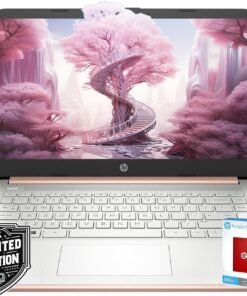
Processor: Intel Celeron N4120 (up to 2.6 GHz burst frequency, 4 MB L2 cache, 4 cores, 4 threads)
Graphics: Intel UHD Graphics
Operating system: Windows 11 Home 64-bit
Memory: 8GB DDR4 SDRAM
Hard Drive: 576GB Storage (64GB onboard hard drive + 512GB external hard drive)
Optical Drive: No
Display: 14-inch diagonal, HD (1366 x 768), micro-edge, BrightView, 220 nits, 45% NTSC
Connectivity: Realtek RTL8821CE 802.11a/b/g/n/ac (1×1) Wi-Fi and Bluetooth 4.2 combo
Audio: Dual Speakers
Keyboard: US English, NonBacklit Full Size Keyboard
Built-in HD Webcam: HP True Vision 720p HD camera with integrated dual array digital microphones
Media Drive:Multi-format SD media card reader
Ports:
1 x USB 3.1 Gen 1 Type-C (Data Transfer Only, 5 Gb/s signaling rate)
2 x USB 3.1 Gen 1 Type-A (Data Transfer Only)
1 x AC smart pin
1 x HDMI 1.4b
1 x Headphone / Mic Combo Jack
Battery:: Up to 11.5 Hours
Color: Rose Gold
Dimensions L x W x H (inches): 12.7 x 8.8 x 0.7
Weight: 3.2 lbs
Accessories:
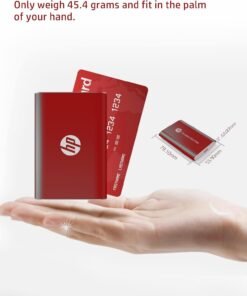
512GB HP P500 External Hard Drive
Back to School Limited Edition for Students: Equipped with an Intel quad-core processor and 8GB of RAM, perfect for managing educational tasks, with a 1-year subscription to Microsoft 365 for enhanced productivity and collaboration.
Expand Your Storage on Us: This laptop includes 64GB of built-in storage and a FREE 512GB external hard drive, totaling 576GB of space
Ultra-Portable with Long Battery Life: Lightweight at just 3.24 pounds and 0.71 inches thin, featuring a battery that lasts up to 11.5 hours, ideal for students and professionals on the go.
Enhanced Connectivity and Portability: Features multiple ports including USB-C and HDMI for versatile connections, along with a sleek, silver design that’s easy to carry and stylish to display.
Complete Accessory Package for Ultimate Convenience: Alongside the laptop, this package includes an HP P500 512GB external SSD for additional storage to speed up your workflow!
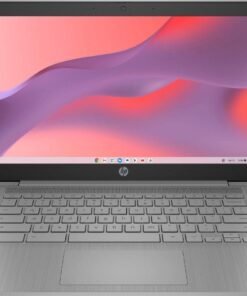
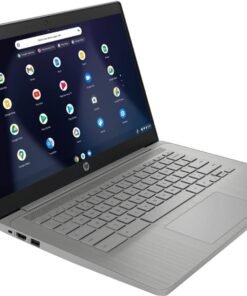
Statement:Original Seal is opened for upgrade ONLY. If the computer has modifications, then the manufacturer box is opened for it to be tested & inspected & to install the upgrades to achieve the specifications as advertisedBrand: HPProcessor Model: Intel Celeron N4120 ProcessorProcessor Cores: 4-coreOperating System: Chrome OSGPU: Intel UHD Graphics 600Display Type: LEDGraphics Type: IntegratedScreen Size: 14 InchScreen Resolution: 1366 X 768System Memory (RAM): Up to 4 gigabytesType of Mem
【Processor】Equipped with Intel Celeron N4120 processor, 1.1GHz (Up to Turbo Boost 2.6 GHz, 4 cores, 4 threads). Whether you’re working on documents, streaming videos, or browsing the web, it offers a responsive and seamless experience.
【Display】 14 Inch Display, 1366 x 768 resolution for clear visuals. Integrated Intel UHD Graphics 600 for regular office work, which deliver decent graphical performance for multimedia consumption, casual gaming, and video streaming.
【Upgraded】 Up to 4GB RAM is designed for basic tasks, the high-bandwith DDR4 RAM run your applications smoothly, as well as multiple programs and files all at once. Up to 128GB eMMC storage capacity is suitable for saving all your files and provides enough space to save more data.
【Connectivity 】 Stay connected with WiFi5 and Bluetooth built in, 1x USB 3.1 Type-C, 2x USB 3.0 Type A, 1x Headphone/Speaker/Line-Out Jack, enabling you to stay connected and access the internet wirelessly.
【Operating System】The laptop runs on Chrome OS, Google’s lightweight operating system designed for quick boot times, seamless integration with Google services, and a wide range of web-based applications. It provides a secure and streamlined computing experience.


Switching out of S mode in Windows 11 Windows 11 in S mode is designed for security and performance, exclusively running apps from the Microsoft Store. If you want to install an app that isn’t available in the Microsoft Store, you’ll need to switch out of S mode 1. On your PC running Windows 11 in S mode, open Settings > System > Activation. 2. In the Switch to Windows 11 Pro section, select Go to the Store. (If you also see an “Upgrade your edition of Windows” section, be careful not to click the “Go to the Store” link that appears there.) 3. On the Switch out of S mode (or similar) page that appears in the Microsoft Store, select the Get button. After you see a confirmation message on the page, you’ll be able to install apps from outside of the Microsoft Store. HP 14 inch Laptop for Business and Student: Sleek design: Easily take this thin and light PC from room to room or on the road Dual array microphones: With two microphones and advanced noise reduction software, you’ll always sound crystal clear when you video chat or record Display: 14.0-inch diagonal, HD (1366 x 768), micro-edge, BrightView Processor: Intel Celeron N4120, 4 Cores & 4 Threads Memory: Upgraded to 16GB DDR4 RAM Storage: 64GB eMMC+64GB Micro SD Card Graphics: Intel UHD Graphics 600 Operating System: Windows 11 Home in S mode HP Fast Charge: Go from 0 to 50% charge in approximately 45 minutes Battery Life: Up to 11 hours and 30 minutes (video playback); Up to 9 hours (wireless streaming) Webcam: HP True Vision 720p HD camera with integrated dual array digital microphones Connectivity: 802.11a/b/g/n/ac (2×2)(19a) Wi-Fi and Bluetooth combo Dimensions: 12.76 x 8.86 x 0.71 inches Weight: 3.24 lbs
【14″ HD Display】14.0-inch diagonal, HD (1366 x 768), micro-edge, BrightView. With virtually no bezel encircling the display, an ultra-wide viewing experience provides for seamless multi-monitor set-ups
【Processor & Graphics】Intel Celeron N4120, 4 Cores & 4 Threads, 1.10 GHz Base Frequency, Up to 2.60 GHz Burst Frequency, 4 MB Cahce, Intel UHD Graphics 600, Handle multitasking reliably with the perfect combination of performance, power consumption, and value
【RAM & Storage】Upgraded to 16GB high-bandwidth DDR4 Memory (2400 MHz), Adequate high-bandwidth RAM to smoothly run multiple applications and browser tabs all at once. 64GB high-speed eMMC Storage for your office and webinar needs
【Ports】1 x USB 3.1 Type-C ports, 2 x USB 3.1 Type-A ports, 1 x HDMI, 1 x Headphone/Microphone Combo Jack, and there’s a microSD slot
【Windows 11 Home in S mode】You may switch to regular windows 11: Press “Start button” bottom left of the screen; Select “Settings” icon above “power” icon;Select “Activation”, then Go to Store; Select Get option under “Switch out of S mode”; Hit Install. (If you also see an “Upgrade your edition of Windows” section, be careful not to click the “Go to the Store” link that appears there.)
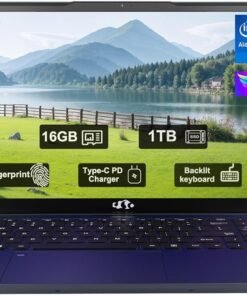
Product Description


1 Fingerprint
2 Wireless Connectivity
3 Ports
4 Display
5 180° Lay-Flat Hinge


1 90 Days Free Return 2 2 Year Free Repair 3 Partially Assembling
Compare with similar items
Add to Cart
Add to Cart
Add to Cart
Add to Cart
Add to Cart
Customer Reviews
4.5 out of 5 stars
41
4.5 out of 5 stars
168
4.2 out of 5 stars
187
4.9 out of 5 stars
11
4.3 out of 5 stars
46
3.6 out of 5 stars
16
Price
$299.99$299.99
$379.99$379.99
$379.99$379.99
$299.99$299.99
$599.99$599.99
—
Backlit Keyboard
✔
✔
✔
✔
✔
✔
Fingerprint
✔
✔
✔
✔
✔
✔
90 Days Free Return
✔
✔
✔
✔
✔
✔
2 Years Maintenance Period
✔
✔
✔
✔
✔
✔
WiFi 6
✔
✔
✔
✔
✔
✔
Bluetooth 5.2
✔
✔
✔
✔
✔
✔
15.6″ FHD Display
✔
✔
✔
✔
✔
✔
Memory
16GB RAM
16GB RAM
16GB RAM
16GB RAM
32GB RAM
32GB RAM
Storage Capacity
1TB PCIe SSD
1TB PCIe SSD
1TB PCIe SSD
1TB PCIe SSD
1TB PCIe SSD
1TB PCIe SSD
Processor
Intel Pentium N100
Intel Pentium N100
Intel Pentium N100
Intel Pentium N100
AMD Ryzen 5 6600H
AMD Ryzen 5
System
Windows 11 Home
Windows 11 Home
Windows 11 Home
Windows 11 Home
Windows 11 Home
Windows 11 Home
【2-Year Manufacturer’s Warranty, Partialy Assembled in the USA, 90-Day Hassle-Free Returns】We prioritize your satisfaction and guarantee it with a comprehensive 2-year manufacturer’s warranty, We also offer 90-day product return and exchange service, 2 Years Warranty and 90 Days Return offered by Manufacture Nimo Direct Inc. If any concerns arise, Our dedicated support team stands ready to swiftly resolve issues or facilitate replacements
【Effortless Speed, Seamless Performance】Windows 11 laptop computer is powered by a faster Intel 12th generation Alder Lake N100 Quad-Core processor (Up to 3.4GHz). Deliver lightning fast speeds and exceptional power for all your computing needs. With this advanced technology, our laptop offers the ultimate laptop experience
【Upgraded Powerful Storage】Never worry about running out of storage space again. The laptop comes with 16GB DDR4 RAM and a sizable 1TB PCIE SSD, allowing you to effortlessly store all your important files, documents, and multimedia
【Humanized Design】Fingerprint Reader with built-in fingerprint sensor on the touchpad, there’s no need to type in your password every time-just a single touch is all it takes. Backlit keyboard for easy typing in dim or dark locations Touchpad with scroll and multitouch capabilities. Bright and evenly distributed backlit keys, easy typing in lower light environment. Ideal for studio work and office. Backlit has the option to turn on/off and adjust the brightness
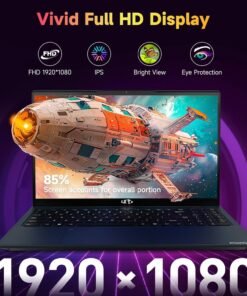
【1920×1080 Bright View】 15.6″ FHD IPS (1920×1080) Anti Glare Display with 85% screen-to-body ratio, 16:9 aspect ratio, and mirco-edge. Bring you an appealing and vibrant 15.6 display that delivers stunning color accuracy and detailed image quality

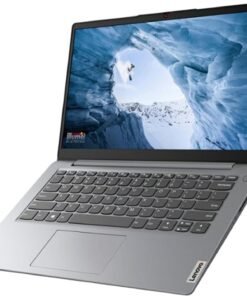
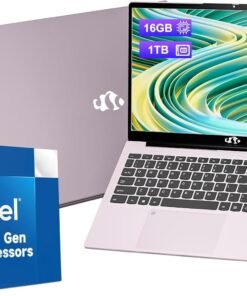
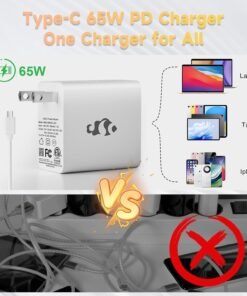
Product Description
1 Fingerprint
2 Wireless Connectivity
3 Ports
4 Display
5 180° Lay-Flat Hinge
1 90 Days Free Return 2 2 Year Free Repair 3 Partially Assembling
Compare with similar items
Add to Cart
Add to Cart
Add to Cart
Add to Cart
Add to Cart
Customer Reviews
4.5 out of 5 stars
41
4.5 out of 5 stars
168
4.2 out of 5 stars
187
4.9 out of 5 stars
11
4.3 out of 5 stars
46
3.6 out of 5 stars
16
Price
$299.99$299.99
$379.99$379.99
$379.99$379.99
$299.99$299.99
$599.99$599.99
—
Backlit Keyboard
✔
✔
✔
✔
✔
✔
Fingerprint
✔
✔
✔
✔
✔
✔
90 Days Free Return
✔
✔
✔
✔
✔
✔
2 Years Maintenance Period
✔
✔
✔
✔
✔
✔
WiFi 6
✔
✔
✔
✔
✔
✔
Bluetooth 5.2
✔
✔
✔
✔
✔
✔
15.6″ FHD Display
✔
✔
✔
✔
✔
✔
Memory
16GB RAM
16GB RAM
16GB RAM
16GB RAM
32GB RAM
32GB RAM
Storage Capacity
1TB PCIe SSD
1TB PCIe SSD
1TB PCIe SSD
1TB PCIe SSD
1TB PCIe SSD
1TB PCIe SSD
Processor
Intel Pentium N100
Intel Pentium N100
Intel Pentium N100
Intel Pentium N100
AMD Ryzen 5 6600H
AMD Ryzen 5
System
Windows 11 Home
Windows 11 Home
Windows 11 Home
Windows 11 Home
Windows 11 Home
Windows 11 Home
Immersive Visual Experience: Dive into stunning visuals with our Nimo 15.6″ laptop. Featuring an anti-glare display, slim bezels, and an impressive 85% screen-to-body ratio, it delivers exceptional color accuracy and reduces eye strain for a truly immersive viewing experience.
Upgraded to 16GB RAM & 1TB PCIe SSD: Equipped with 16GB DDR4 RAM, this laptop ensures smooth multitasking for work and entertainment. The 1TB PCIe SSD offers ample storage and quick access to your important files, enhancing overall performance and efficiency.
Seamless Connectivity: Stay connected wherever you are with Wi-Fi 6 and Bluetooth 5.2 technology. Stream content, join video calls, and transfer files effortlessly with lightning-fast speeds and stable connections. Our laptop keeps you connected in today’s fast-paced world.
Versatile Convenience: Work and play with ease thanks to the backlit keyboard and built-in fingerprint sensor. Swift data transfer is at your fingertips with USB 3.0 ports, making it the ultimate compact powerhouse for your everyday needs, whether at home, in the office, or on the move.
2-Year Warranty90-Day Risk-Free Returns: Assembled in the USA for reliable quality, this NIMO laptop includes a 2-year manufacturer’s warranty for added peace of mind. Plus, with our 90-day risk-free return policy, you can try it out with confidence, knowing that our support team is ready to assist with any issues or replacements.


The HP Chromebook empowers you to work more efficiently from the comfort of your own home. The 14” HD (1366 x 768) micro-edge, anti-glare (1) display makes images appear crisp. With Intel® Celeron® N4000 (2) processing power and Intel® UHD Graphics 600 (3), binge watching, gaming, and music are taken to new heights. Securely storing and quickly accessing your work is a breeze with 32 GB eMMC storage (4) and 4 GB of RAM. Work and entertainment doesn’t have to end with up to 13 hours and 30 minutes of streaming power (5) with mixed usage. The Chrome operating system lets you effortlessly navigate through tabs and programs. Your Chromebook is protected with HP’s 1-year limited hardware warranty. Easily communicate with colleagues and friends with the HP Wide Vision HD camera (6) with integrated dual array digital microphones. The Wi-Fi® 5 (2×2) and Bluetooth® 5.0 combo (7) keeps your connection clear so you can continue to work with efficiency. This lightweight computer is 3.24lbs (8), allowing you to easily store it in your Chromebook case for on-the-go use. Reduce your carbon footprint by working with HP ENERGY STAR® certified (9) and EPEAT® Silver registered (10) computers. (1) High-definition (HD) content is required to view high definition images. (2) Multi-core is designed to improve performance of certain software products. Not all customers or software applications will necessarily benefit from use of this technology. Performance and clock frequency will vary depending on application workload and your hardware and software configurations. Intel’s numbering, branding and/or naming is not a measurement of higher performance. Intel, Pentium, Intel Core, Celeron, Iris Xe, Intel logo and the Intel Inside logo are trademarks of Intel Corporation in the U.S. and other countries. (3) Shared video memory (UMA) uses part of the total system memory for video performance. System memory dedicated to video performance is not available for other use by other programs. (4) For storage drives, GB = 1 billion bytes. Actual formatted capacity is less. Portion of internal system storage is reserved and not user accessible. (5) Testing conducted by HP using Google Chrome OS power LoadTest. Battery life will vary and the maximum capacity of the battery will naturally decrease with time and usage. See chromium.org/chromium-os/testing/power-testing for test details. (6) Features may require software or other 3rd party applications to provide the described functionality. Internet service required and not included. (7) Wireless access point and internet service required and sold separately. Availability of public wireless access points limited. Wi-Fi 5 (802.11ac) is backwards compatible with prior Wi-Fi 5 specs. Bluetooth® is a trademark owned by its proprietor and used by Hewlett-Packard Company under license. (8) Weight and system dimensions may fluctuate due to configuration and manufacturing variances. (9) ENERGY STAR and the ENERGY STAR mark are registered trademarks owned by the U.S. Environmental Protection Agency. (10) Based on U.S. EPEAT® registration according to IEEE 1680.1-2018 EPEAT®. EPEAT® status varies by country. Visit www.epeat.net for more information. High-definition (HD) content is required to view high definition images.
REMOTE WORK READY – Work efficiently from the comfort of your own home office using the HP 14″ Chromebook.
CLEAR IMAGING – Images appear crisp with the 14″ HD (1366 x 768), micro-edge, anti-glare (1) display.
LIGHTNING FAST PROCESSING – Games, music, and binge watching are taken to new heights with Intel Celeron N4000 (2) processing power and Intel UHD Graphics 600 (3).
SECURELY SAVE YOUR WORK – With 32 GB eMMC storage (4), saving important documents is made simple. Plus, quickly access your documents with 4 GB of RAM.
LONG-LASTING BATTERY LIFE – Enjoy up to 13 hours and 30 minutes of wireless streaming (5) depending usage.
MODERNIZE YOUR WORLD – Navigate seamlessly through tabs and programs with the Chrome operating system. Also, rest easy knowing your investment is protected with HP’s 1-Year Limited Hardware Warranty.
BE SEEN & HEARD – HP’s Wide Vision HD camera (6) with integrated dual array digital microphones lets you video chat with vibrant clarity.
CONNECT SMOOTHLY – Your connections are rock solid with the Wi-Fi 5 (2×2) and Bluetooth 5.0 combo (7).
TAKE WORK WHEREVER YOU GO – The Chromebook is 3.24 lbs (8) so you can take your work and entertainment wherever you need it.
ENERGY-EFFICIENT – Do the environment a favor by working with an HP ENERGY STAR certified (9) and EPEAT Silver registered (10) laptop computer.

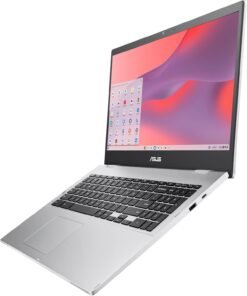
ASUS Chromebook CX1500 is made for boosting productivity and having more fun while on the move — all day, every day. This lightweight, ultraportable device is powered by an Intel processor and gives you the freedom of up to an 11-hour battery life. The slim-bezel design fits more screen into the compact chassis for easy multitasking and incredibly immersive entertainment, and the device is your gateway to the best of Google, including the rich library of apps for work or play on the Google Play Store. With speedy performance, robust security and intuitive features, ASUS Chromebook CX1 is ideal for anyone on the go!
FREE GOOGLE ONE AI PREMIUM PLAN — Get Gemini Advanced, 2TB of cloud storage, and more for 3 months at no cost*
SNAPPY OPERATING EXPERIENCE — Powered by the Intel Celeron N4500 Processor, ensuring fast and smooth navigation
LIGHTWEIGHT YET DURABLE — Durable and built to meet Military Grade standard MIL-STD 810H, weighing just 3.97 lbs
FAST MEMORY AND WIRELESS CONNECTIVITY — 64GB eMMC storage and 8GB RAM, 64GB eMMC and 8GB RAM, Wi-Fi 6 + Bluetooth 5.2 (Bluetooth version may change with OS updates)
EXPANSIVE, IMMERSIVE DISPLAY — 15.6-inch Full HD 1920×1080 NanoEdge Display
ERGONOMIC KEYBOARD — Chiclet keyboard with physical numeric keypad for intuitive number input
LONG-LASTING BATTERY — Up to 11-hour battery life (Battery life vary by working conditions)
COMPREHENSIVE CONNECTIVITY — 1x audio jack, 2x USB Type-C (Gen 1) ports, 2x USB 3.2 Type-A (Gen 1), Micro SD Card reader (*USB Transfer speed may vary. Learn more at ASUS website)
GOOGLE ONE OFFER — Chromebooks come with built-in storage for offline access to your most important files and a 12-month Google One trial that gives you additional storage across Gmail, Google Drive and Google Photos. This offer from Google will expire by 1/31/2024. Google features’ availability varies according to country. Please check with your local ASUS retailer for details.
NEVER HAD A VIRUS — You can breathe easy knowing your security and privacy are covered *Limit 1 redemption per eligible Chromebook Plus device activated on or after 10/1/24. Must be ages 18+ to be eligible. Redeem offer until 1/31/26. Cancel anytime. See g.co/chromebook/ai-premium-offer for full terms. ** As of September 2024 there has been no evidence of any documented, successful virus attack on ChromeOS. Data based on ChromeOS monitoring of various national and internal databases.
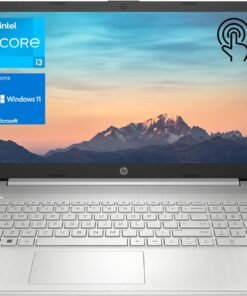
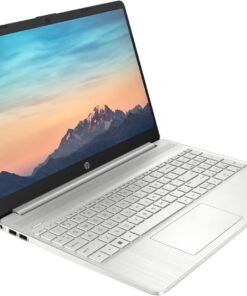
Product Description


【Memory & Storage】The PC memory has been upgraded to 32GB DDR4 SDRAM for enhanced high bandwidth to easily switch back and forth between open applications; the Hard drive has been upgraded to 1TB PCIe NVMe M.2 SSD for fast boot-up and speedy data transfer
【Processor】Intel Core i3-1115G4 Processor (2 Cores, 4 threads, 6MB L3 Cache, base at 3.00GHz, up to 4.10GHz), with Intel UHD Graphics
【Screen】15.6″ diagonal, HD (1366 x 768), touchscreen, micro-edge, BrightView, 220 nits, 45% NTSC
【Tech Specs】1 SuperSpeed USB Type-C, 2 SuperSpeed USB Type-A, 1 HDMI, 1 AC smart pin, 1 Headphone/Microphone combo; Wi-Fi and Bluetooth
【Operating System】Windows 11 Home – Beautiful, more consistent new design, Great window layout options, Better multi-monitor functionality, Improved performance features, New videogame selection and capabilities, Compatible with Android Apps
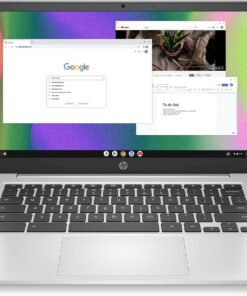
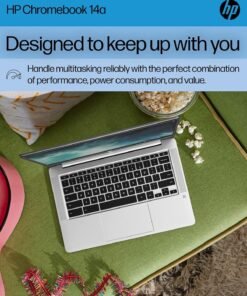
Whether you need a laptop for work, college, or everyday computing, the HP Chromebook 14 Laptop has got you covered. Watch movies or view spreadsheets in high-quality HD and in direct sunlight with a 14-inch anti-glare, micro-edge screen (1). Plus, with custom-tuned dual speakers, you’ll enjoy clear authentic audio to elevate all of your entertainment needs. Not only is this Chromebook outfitted for relaxing, but it’s also a productivity powerhouse. The HP laptop computer’s portable and lightweight design lets you take it just about anywhere, while the Intel® Celeron N4120 processor touts plenty of power for even your busiest days (2). Enjoy the highest resolution games and movies with the 4K-ready Intel UHD Graphics 600 (3) (4). Multitask faster, even with multiple windows open, and safely store more content with this HP 14-inch laptop’s 4 GB of RAM and 64 GB of eMMC storage (5).Pull all-nighters or binge-watch your favorite show with confidence thanks to your HP notebook computer’s 14 hours of battery life (6). When you do run short on power, just plug in your Chromebook charger and HP Fast Charge takes your battery to 50% in just 45 minutes (7). Not only does the Chrome OS give you greater security and an always up-to-date experience, but you can also take advantage of millions of apps in the Google Play Store (8). Work confidently with a 1-year limited hardware warranty and stay connected with the dependable 802.11a/b/g/n/ac (2×2) Wi-Fi and Bluetooth combo (9) (10). Expand the way you game, work, and create with the innovative HP Imagepad, a true multi-touch touchpad that supports four-finger gestures. Your HP 4K laptop isn’t just built for greater productivity and more immersive entertainment, but also for sustainability. Do your part toward a cleaner planet with an ENERGY STAR certified (11) and EPEAT Silver registered (12) Chromebook 14-inch.
FOR HOME, WORK, & SCHOOL – With an Intel processor, 14-inch display, custom-tuned stereo speakers, and long battery life, this Chromebook laptop lets you knock out any assignment or binge-watch your favorite shows..Voltage:5.0 volts
HD DISPLAY, PORTABLE DESIGN – See every bit of detail on this micro-edge, anti-glare, 14-inch HD (1366 x 768) display (1); easily take this thin and lightweight laptop PC from room to room, on trips, or in a backpack.
ALL-DAY PERFORMANCE – Reliably tackle all your assignments at once with the quad-core, Intel Celeron N4120—the perfect processor for performance, power consumption, and value (2).
4K READY – Smoothly stream 4K content and play your favorite next-gen games with Intel UHD Graphics 600 (3) (4).
MEMORY AND STORAGE – Enjoy a boost to your system’s performance with 4 GB of RAM while saving more of your favorite memories with 64 GB of reliable flash-based eMMC storage (5).
DESIGNED TO KEEP UP WITH YOU – Get everything on your to-do list done with up to 14 hours of battery life (6); plus, HP Fast Charge technology charges your laptop computer from 0 to 50% in approximately 45 minutes, so you never miss a beat (7).
CHROME OS AND WARRANTY – Redefine how you work and play with the always secure and up-to-date Chrome browser, offering a huge selection of android apps in the Google Play Store (8). Start computing with confidence as your Google Chromebook laptop is covered by a 1-year limited hardware warranty.
ROCK SOLID CONNECTIVITY – Experience powerful connectivity with the 802.11a/b/g/n/ac (2×2) Wi-Fi and Bluetooth combo, perfect for remote work, modern games, or streaming your favorite show (9) (10).
MULTI-TOUCH TOUCHPAD – Your device’s full-size keyboard features a true multi-touch touchpad that supports four-finger gestures and lets you scroll, zoom, and navigate with a simple touch.
SUSTAINABLE DESIGN – HP is committed to global citizenship and environmental responsibility—that’s why this laptop Chromebook is ENERGY STAR certified (11) and EPEAT Silver registered (12).

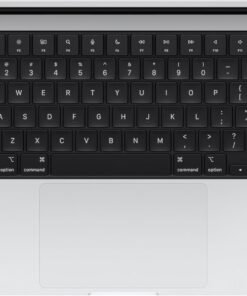
SUPERCHARGED BY M4 — The 14-inch MacBook Pro with M4 chip gives you spectacular performance in a powerhouse laptop built for Apple Intelligence.* With all-day battery life and a breathtaking Liquid Retina XDR display with up to 1600 nits peak brightness, it’s pro in every way.*
CHAMPION CHIP — The M4 chip brings spectacular speed and capability to blaze through everyday activities and multitask across multiple productivity and pro apps.
BUILT FOR APPLE INTELLIGENCE—Apple Intelligence is the personal intelligence system that helps you write, express yourself, and get things done effortlessly. With groundbreaking privacy protections, it gives you peace of mind that no one else can access your data—not even Apple.*
ALL-DAY BATTERY LIFE — MacBook Pro delivers the same exceptional performance whether it’s running on battery or plugged in.
APPS FLY WITH APPLE SILICON — All your favorites, including Microsoft 365 and Adobe Creative Cloud, run lightning fast in macOS.*
IF YOU LOVE IPHONE, YOU’LL LOVE MAC — Mac works like magic with your other Apple devices. View and control what’s on your iPhone from your Mac with iPhone Mirroring.* Copy something on iPhone and paste it on Mac. Send texts with Messages or use your Mac to answer FaceTime calls.*
BRILLIANT PRO DISPLAY — The 14.2-inch Liquid Retina XDR display features 1600 nits peak brightness, up to 1000 nits sustained brightness, and 1,000,000:1 contrast.*
ADVANCED CAMERA AND AUDIO — Stay perfectly framed and sound great with a 12MP Center Stage camera, three studio-quality mics, and six speakers with Spatial Audio and support for Dolby Atmos.
CONNECT IT ALL — This MacBook Pro features three Thunderbolt 4 ports and a MagSafe 3 charging port, SDXC card slot, HDMI port, and headphone jack. And it supports up to two external displays.
LEGAL DISCLAIMERS — This is a summary of the main product features. See below to learn more.
David –
Perfect for what I needed
[...]Laptop quality 👌Lite weight so easily to portable
DJ Johnson –
Hella dope!
[...]The display is beautiful and the tablet feature works seamlessly with it’s other functions. Strongly recommend
Jackie Ferguson –
Good quality
[...]I purchased this for work and I couldn’t be happier.
James Moore –
This computer is FAST
[...]This computer boots up quickly, much more than I am used to. It is easy to get into the various programs, and they all seem to work well. I would highly recommend this computer.
sghezzi –
Just what I wanted
[...]Nice computer. Easy to use, lightweight and faster than I expected. I just wanted something to go online with other than my iPhone all the time.
Bryan Crawford –
Laptop
[...]So far, this laptop has met our expectations. It is lightweight and thin, which is nice.
JH –
Good laptop
[...]Works great, no glitches so far, battery lasts all day with continued use. Screen is small but that’s my fault for not realizing when I purchased.
Josh –
Great PC……with a few tweaks……
[...]The Good:Looks great, fast boot time with SSD (23 secs from power on to ready to use), and feels like it will last for many years if taken care of.The Bad:Shipper required direct signature for delivery and the Fedex delivery window was “by end of day” so I had to take nearly all day off work to be home to sign for it since it was a birthday gift due to be gifted on the delivery day. Some people would consider a signature requirement a good thing however with porch pirates becoming a major issue in places.The Ugly:On first boot, the machine threw a CMOS error which was odd but once I proceeded on, it never returned so it must have just been a fluke. After setting Windows up for the first time following the step by step directions, on first login, the machine gave a critical error saying the start menu wasn’t working and was running horribly slow even after updating everything. We spent well over an hour troubleshooting potential fixes with no luck (it appears to be a common Windows 10 issue apparently). I am very tech savvy and this had me stumped. For someone unfamiliar with computers, this would have been extremely frustrating, if not would have resulted in the machine being returned as defective when in reality the machine is great. I finally spent another hour performing a fresh install of Windows 10 where it reinstalls Windows with only the programs included with Windows 10 and none of the preloaded bloatware provided by the manufacturer. This resolved all problems and now the machine is running great, as I expected it would from the beginning.Overall, it’s worth buying, but be prepared to remove the bloatware and possibly run into some software glitches…before returning it, do a Google search for your issues and give the recommended fixes a shot. My fiancee loves the computer now that we’ve got it working as it’s supposed to.